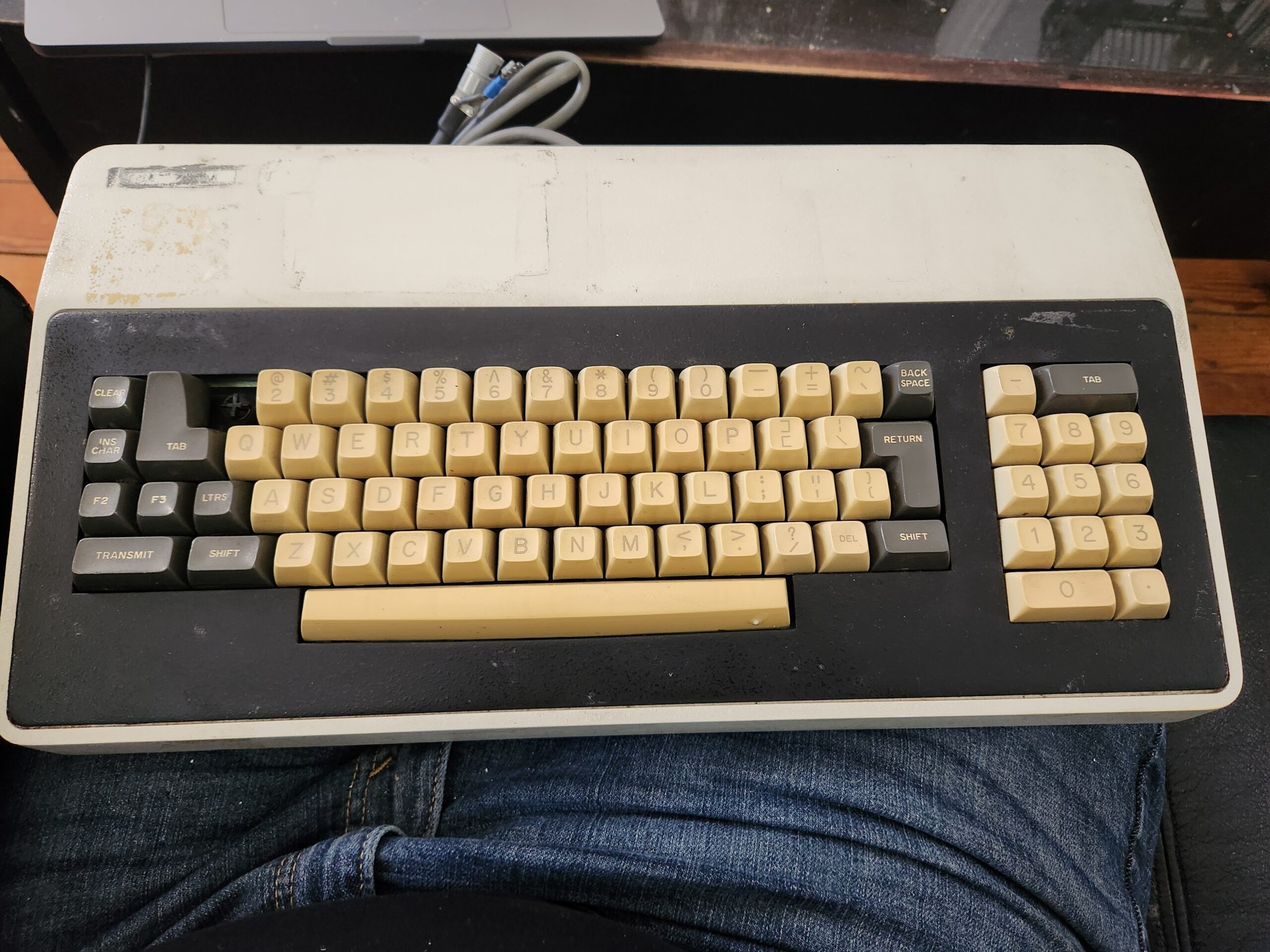
Sometimes, it’s nice to spend time on Ebay looking at vintage computer equipment. I couldn’t ever justify actually buying anything in that category, because spending money on increasing the amount of old junk I have in my office is rarely a good idea. So instead, I have found that drinking before Ebaying makes buying useless crap, purely because you like the look of it, much, much, easier.
The keyboard pictured above called out to me, and if you can’t understand why then I wouldn’t be at all surprised; just understand that to me, it looked fascinating and beautiful. Yes, I know there is a missing key, but to me that flaw makes it even more adorable. There was very little information regarding the system it came from, beyond the word “Qantel”, which I assumed was a misspelling of “Quantel“. It wasn’t. But I made it mine regardless.
A bit of searching revealed it to be the keyboard from an interesting looking terminal called the VT3, and, of course, someone had been kind enough to make the manual available online. Younger readers may be astonished to know that in the golden age of computers, even basic equipment tended to come with a manual, or set of manuals, that not only described how to use the equipment, but how to service it, and even how it worked! Imagine!
Obviously, as well as appreciating it as an objet d’art, I wanted to see if I could get it to actually work as a functional keyboard; keyboards of this vintage are built to last, and out-klack even the klackiest cherry-loaded custom mechanical gaming keyboard. The only problem is that it predates any keyboard standard that you’re likely to have in a modern OS; not just pre-USB but pre-PS/2 and pre-AT. Fortunately, the manual proved extremely informative.
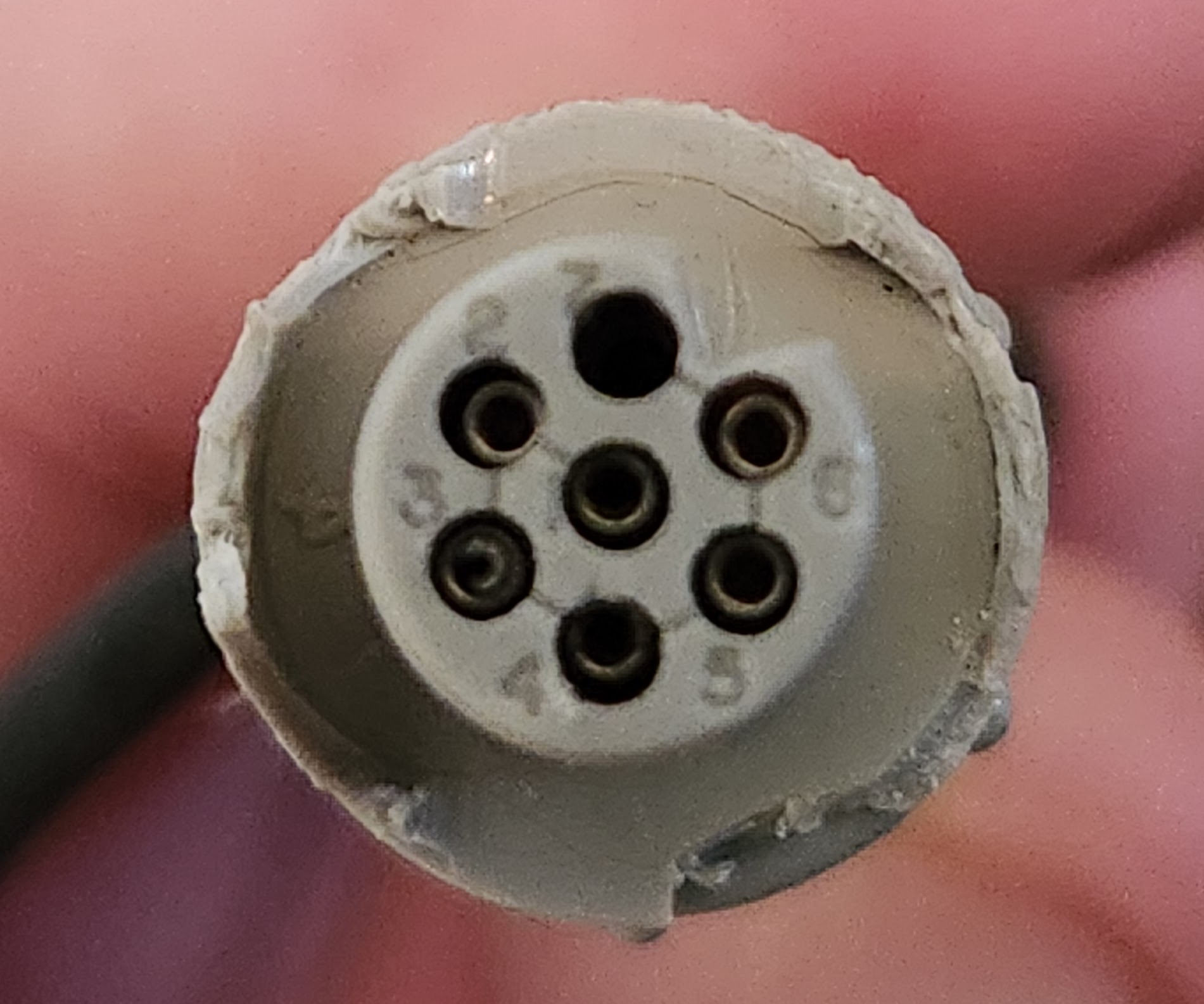
The keyboard had a single cable coming out of it with a 7 pin Viking connector, the plastic sheath of which was starting to break. The simplest solution would have been to remove the connector and connect to the wires directly, but a part of me didn’t like the idea of losing that little piece of history – and who knows, maybe one day I’ll happen across the rest of a VT3 and get it working. That won’t happen.
The manual contained all of the schematics for every part of the VT3, including a numbered pin-out. The manufacturers of the connector were kind enough to etch the pin numbers on the face of the socket. As you can see from the picture, the numbering is peculiar, with pin 1 in the center and the rest of the numbers spiraling around it; also, pin 7 is not used. The connections were described as follows:
1 - DKEY+
2 - GND
3 - CLOCK+
4 - STROBE+
5 - +5V
6 - ALARM-
The description of these signals was a bit vague, but from what I could determine, the keyboard uses a type of synchronous serial interface. When a key is pressed, the STROBE+ line becomes active, then it is the job of the connected interface to produce a clock on the CLOCK+ line, and with each clock cycle the keyboard presents the next bit of the scan code on the DKEY+ line. ALARM- can be invoked to make the keyboard bleep.
For testing this out, I decided to use an Adafruit FT232H breakout board: the Swiss Army Knife of signal hackery. Apart from the fact that I had one to hand, it could also provide the 5V power that was needed for the keyboard, and is easily controlled with simple code. Wiring it up would also be trivial because the tolerance for 5V signals means it can be directly connected to the socket with DuPont wires.
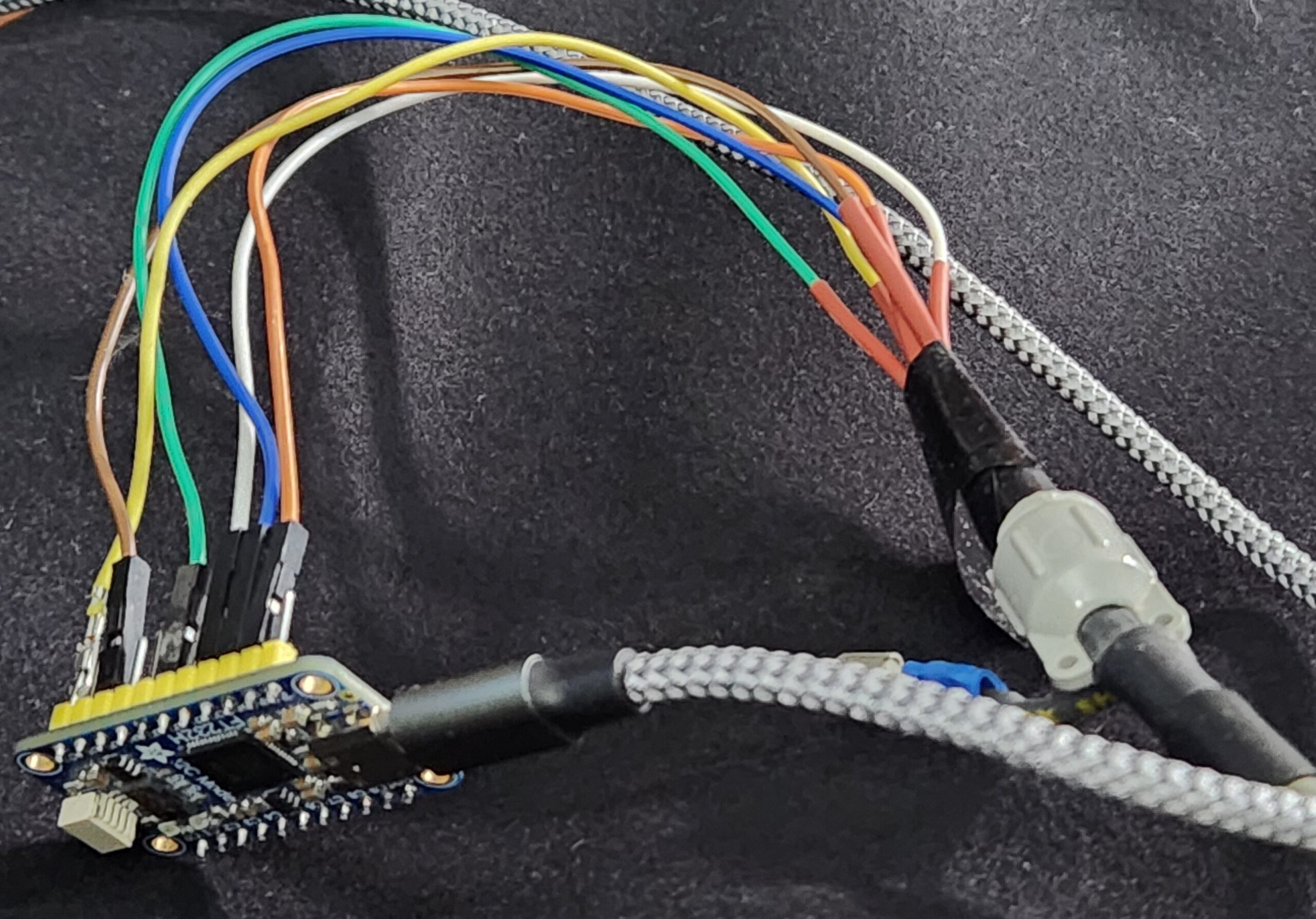
To attach each DuPont wire to the keyboard connector, I removed the black plug from one end and replaced it with a slim heat-shrink tube so that they were thin enough to coexist happily when their pointy ends were plugged into the Viking connector. A bunch of electrical tape was then wrapped around the wires to keep them in place. As you can tell, I’m a real craftsman.
The other ends of the DuPont wires I randomly placed on the GPIO pins of the FT232H. For those that are playing along at home, the wiring turned out to be as follows:
1 - DKEY+   - White    D0 in
2 - GND     - Blue     GND
3 - CLOCK+  - Yellow   D7 out
4 - STROBE+ - Green    D2 in
5 - +5V     - Orange   5V
6 - ALARM-  - Brown    D5 out
The FT232H is a tremendously useful chip, but it’s proprietary, and the official libraries are closed source. This is not something I can deal with normally, but thankfully someone has written an open source, reverse-engineered, library for talking to it.
It’s important to note that the computer I’m trying to get this keyboard talking to is running Linux. No apologies for that. All of the code described below is available from github; there’s a link at the end.
Initially, I wrote a stupidly crude program to make sure that the keyboard was actually working as the manual suggested. It simply monitored the STROBE line watching for a state change, at which point it toggled the CLOCK line, effectively creating a clock train. Meanwhile the DKEY line was monitored for the key code. Here is a logic trace of the keys “a”, “s”, and “d” being pressed.
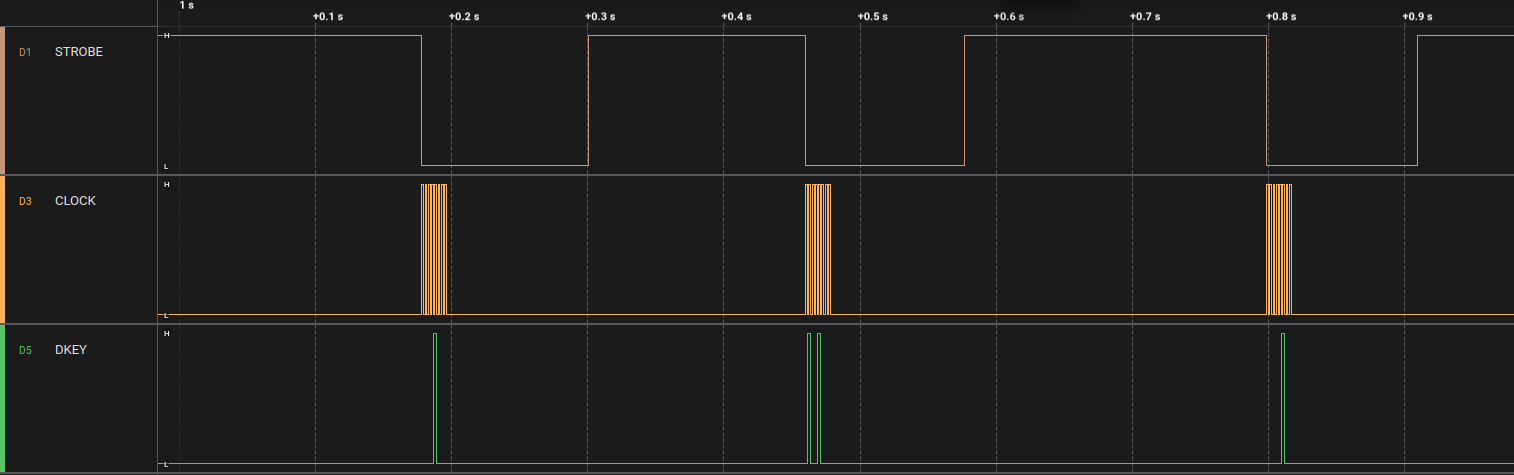
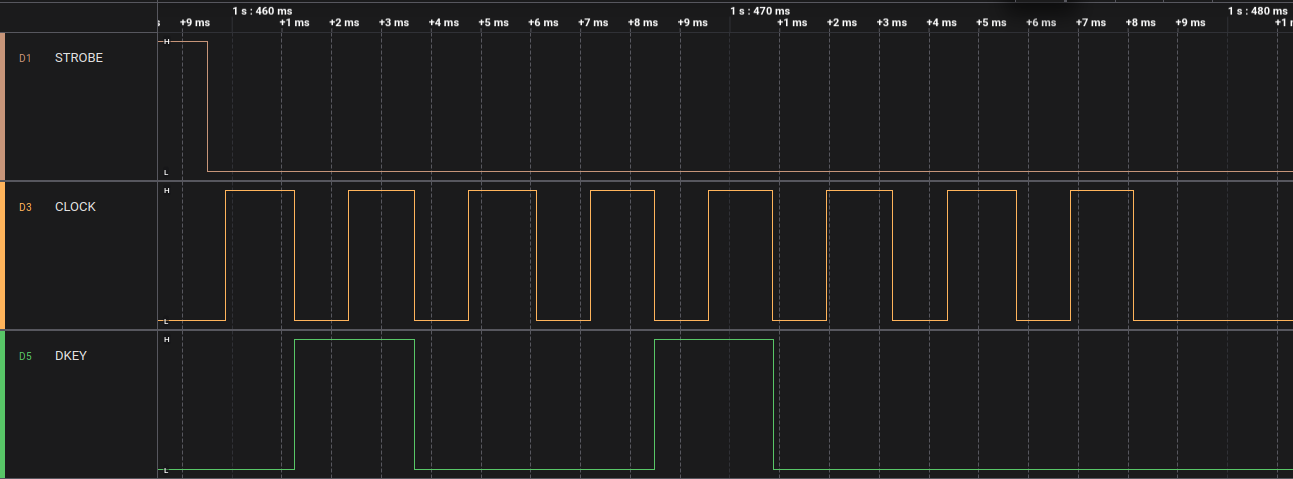
Every time the CLOCK line goes high, the state of the DKEY line is read. If it’s high, then the bit is set (1), low and it’s unset (0). From the trace above you can see that the bits of the code are 01001000. The order the bits arrive is LSB to MSB, but obviously when we write binary we start with the MSB on the left, to LSB on the right. In other words, we need to reverse the bits to get the key code: 00010010, or 18 in decimal.
The shift key doesn’t produce a separate key code, instead it causes bit 7 of the key code to be set when other keys are typed. For example, compare the trace for “s” above with SHIFT+”s”:
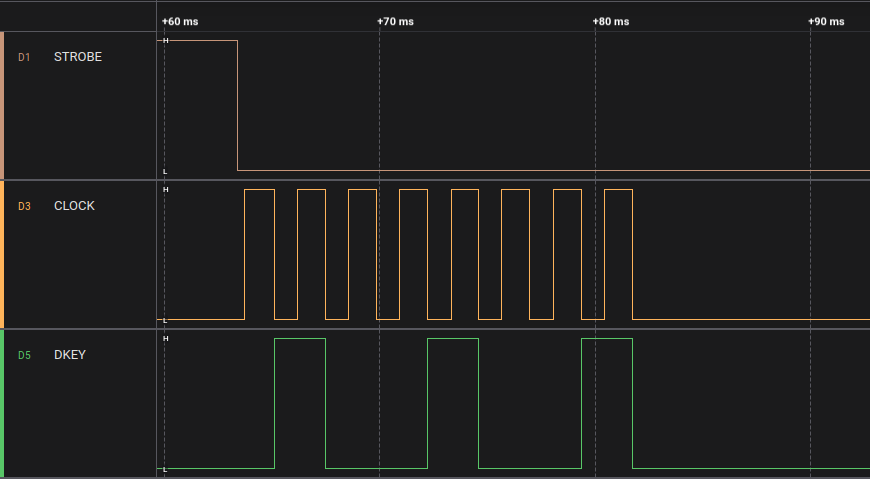
You can see that this time the code is the same as before but with the 8th bit also set, yielding a code of 10010010 – decimal 145 (i.e. 18 + 127).
You may notice that 18 is not the ASCII code for the letter “s”, in fact it’s not related to “s” in any standard coding. The key codes are completely arbitrary and derived from how the key-switches are connected together. Consequently, there needs to be a mapping from the keycodes to the actual keys they represent. So, I decided to manually map them by hitting every key and recording the scan codes for each. There was probably a map in the manual somewhere, but as I was mapping them to Linux Key codes anyway there would have been a lot of manual work regardless. It turned out that this process really didn’t take very long, and I ended up a single file containing all the mapping: keymap.c.
Here is the first few lines as an example. In a nutshell we have an array containing all 127 possible keycodes, indexed by scancode. You’ll see that the 19th entry (i.e. index 18) is “KEY_S”. Those “KEY_” codes come from the Linux header file input-event-codes.h by the way. It wasn’t essential to use them, but it comes in handy further down.
#include "input-event-codes.h"
#include "keymap.h"


#define KEY_MAP_DEF(x) {x,#x}

mapping_t keymap[127] = {
                KEY_MAP_DEF(0),
                KEY_MAP_DEF(KEY_NUMERIC_7),
                KEY_MAP_DEF(KEY_NUMERIC_4),
                KEY_MAP_DEF(KEY_INSERT),
                KEY_MAP_DEF(0),
                KEY_MAP_DEF(KEY_CLEAR),
                KEY_MAP_DEF(0),
                KEY_MAP_DEF(/*KEY_TRANSMIT*/ 0),
                KEY_MAP_DEF(KEY_APOSTROPHE),
                KEY_MAP_DEF(KEY_SPACE),
                KEY_MAP_DEF(KEY_LEFTBRACE),
                KEY_MAP_DEF(KEY_ENTER),
                KEY_MAP_DEF(KEY_BACKSLASH),
                KEY_MAP_DEF(KEY_GRAVE),
                KEY_MAP_DEF(KEY_BACKSPACE),
                KEY_MAP_DEF(KEY_NUMERIC_1),
                KEY_MAP_DEF(KEY_A),
                KEY_MAP_DEF(KEY_C),
                KEY_MAP_DEF(KEY_S),
So, with this keymap it was now possible to make sure everything was working as expected. I made my little program print out the correct key code every time a key was pressed and, shockingly, it all seemed to work first time.
At this point, it would normally be time to switch out the FT232H for something that could mimic a USB keyboard interface, but then it occurred to me that we may not need to yet. Linux provides user-mode interfaces to the entire input event system, meaning that, in theory, we could make this keyboard available to the system by running a simple userland program. I’d never messed around with the input subsystem before, but it seemed like it could be a fun little learning experience.
The API for the input system (uinput) looked surprisingly simple, but Internet wisdom suggested that the best way to interact with it was via the libevdev library, which is designed to help end users avoid gotchas and bugs, rather than talking to /dev/uinput directly.
Using the library is surprisingly straightforward.
dev = libevdev_new();
libevdev_set_name(dev, "Qantel Keyboard");
libevdev_enable_event_type(dev, EV_KEY);
libevdev_enable_event_type(dev, EV_SYN);
You create a libevdev device by calling libevdev_new(), and then enabling the events that you want it to receive. For a keyboard, all we really need is EV_KEY, which is sent on any key event (e.g key up, or key down), and EV_SYN, which tells the input system that we’re ready for it to process the previous EV_KEY events we’ve already sent.
Next is a slightly odd thing, we have to enable every possible event code that we’re going to send. So we loop through the keymap and enable each:
    for (int k = 0; k < 256; k++) {
        if (keymap[k].keycode) {
            int ret = libevdev_enable_event_code(dev, EV_KEY, keymap[k].keycode, NULL);
            if (ret != 0) {
                fprintf(stderr, "Error registering event type: %s\n", keymap[k].name);
                return 2;
            }
        }
    }
Next, we create a uinput device from our libevdevice
libevdev_uinput_create_from_device(dev, LIBEVDEV_UINPUT_OPEN_MANAGED, uidev);
This simplifies everything and manages the interactions with the uinput device for us.
Once this is in place, we can run the existing code to clock in the keystrokes, and for each one send corresponding events.
                libevdev_uinput_write_event(uidev, EV_KEY, key, 1);
                libevdev_uinput_write_event(uidev, EV_SYN, SYN_REPORT, 0);
                usleep(1000);
                libevdev_uinput_write_event(uidev, EV_KEY, key, 0);
                libevdev_uinput_write_event(uidev, EV_SYN, SYN_REPORT, 0);
This corresponds to sending a key down event, waiting 1ms and then sending a key up event.
This was enough to get it it acting as a functional system keyboard for my laptop. Here’s a little demonstration video:
The little bit of code is available on github for the curious. It should be noted that this is just a quick hack for testing the keyboard, and isn’t designed to be a keyboard driver. Unfortunately the FT232H doesn’t provide a good way to trigger interrupts so we’re polling it – and that is far from ideal.
Also, at present we’re not dealing with modifier keys (e.g. shift/ctrl). If anyone’s interested we can develop this further.